Documentation
Project Settings
Configure database, environment, and integrations
Overview
Project Settings is where you manage the configuration that applies to your entire application. Access it from the settings icon in the top navigation.
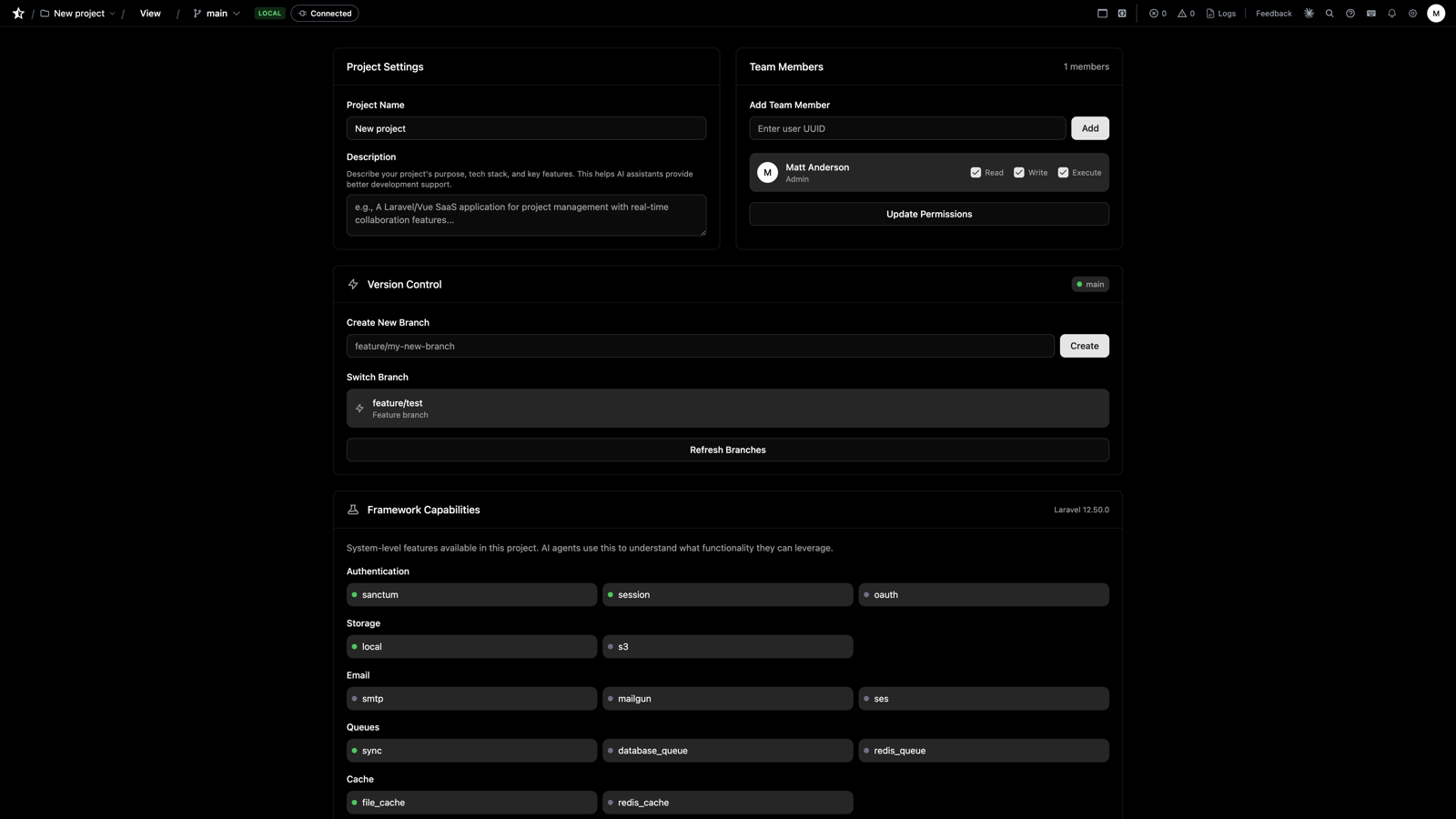
General Project Settings
Basic project information and configuration.
- Project Name: Display name for your project
- Description: Brief description of what the app does (used by AI)
- PHP Version: Target PHP version for compatibility
Team Members
Invite collaborators by email, review pending invitations, and set each member's permissions (read, write, execute). See Collaborators for the full picture, including limits and how simultaneous edits are handled. Subscription only.
Version Control
Create, switch, merge, and delete branches for your project. See Version Control.
- Default branch: Usually
main, used as the base for new branches - Commits ahead: Changes not yet merged to the default branch
- Branch creation requires an active subscription
Capabilities
View and configure installed packages and integrations. AI checks for capabilities before implementing a feature request. If application framework code is needed that doesn't currently exist or is not fit for purpose, a capability request is raised and you'll be emailed once the capability is available.
Some capabilities need configuration before they can be enabled — for example, Stripe needs your API keys, and the ai capability needs provider credentials. Save the required settings first, then enable.
Capability Statuses
- Available: Installed and ready to use
- Needs Config: Installed but requires API keys or setup
- Enable: Click to add the capability to your project
Per-Project AI Credentials
Enabling the ai capability lets your application code use the Laravel AI SDK with your own provider keys (OpenAI, Anthropic, Gemini, and others). Your credentials are stored as a project setting and injected only when your code runs — they're never shared with the platform's own AI features.
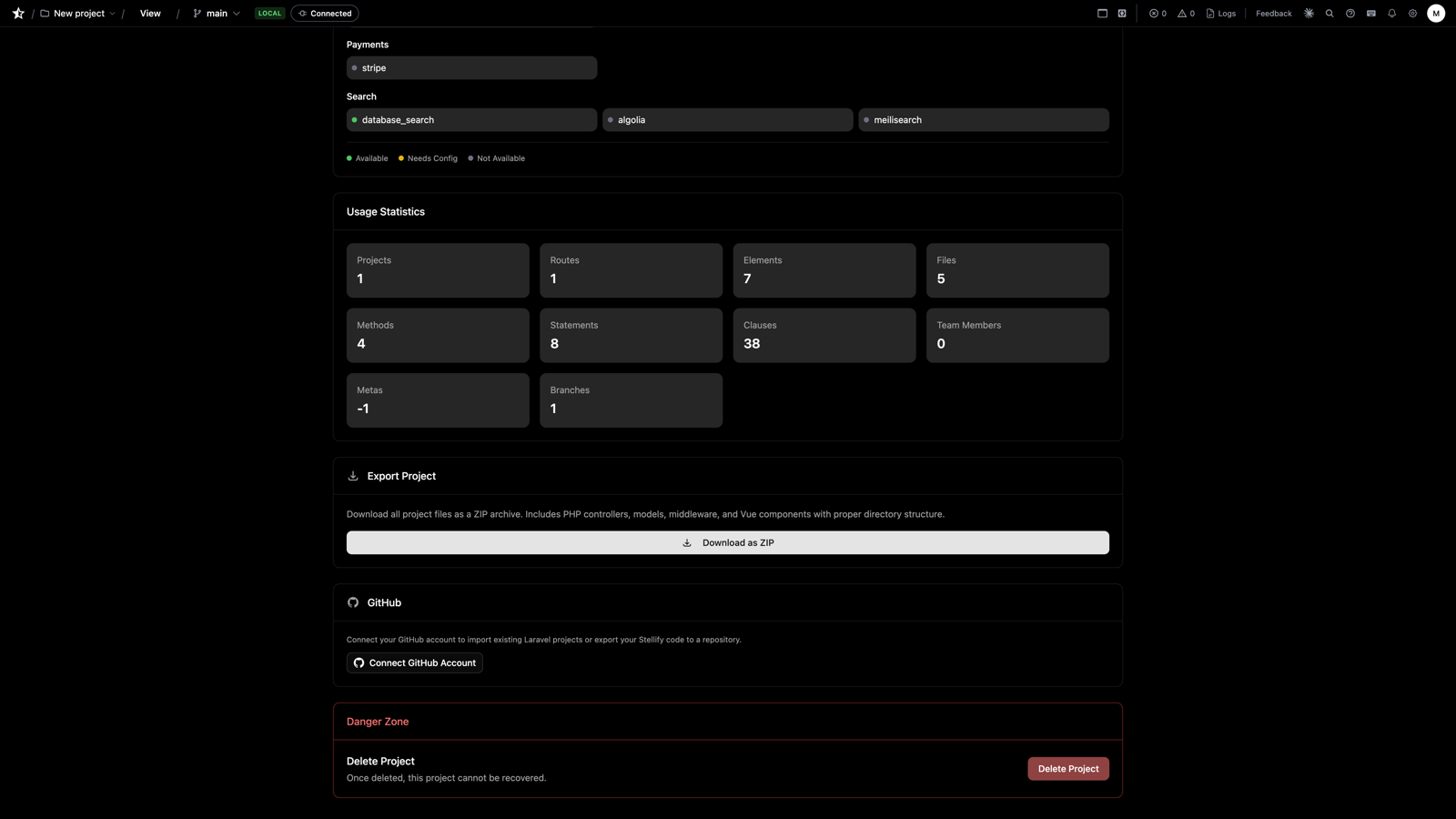
Usage Statistics
View usage metrics and analytics for your project.
Publish to Constellation
Submit your project for a public listing on Constellation, Stellify's app store. Fill in the listing metadata (description, thumbnail, screenshot) and submit for review — on approval, your project becomes public and its code becomes referenceable by other projects.
Export Project to Desktop
Download your project as standard PHP and Vue files for local development. See Exporting Code.
GitHub Integration
Connect your project to GitHub for version control and export. Link a repository to enable importing, exporting, and two-way file sync.
Delete Project
Permanently delete your project. This action cannot be undone.
Next Steps
- Code Editor - Write application logic
- Interface Builder - Build your UI
- Exporting Code - Export to GitHub
- Previous
- API Authentication
- Next
- User Settings